
Official Open-Source Magento Chatbot Extension, Module & PHP / NPM SDKs
We engineered and actively maintain our open-source Magento Chatbot Extension (Magento 2 ClusterifyAI_ChatBot module) alongside our official PHP 8.2+ SDK and Node.js/TypeScript NPM SDK. As Clusterify.AI evolves with new conversational capabilities, we continuously ship updates, Magento Chatbot configuration enhancements, and automated tests directly to Packagist and GitHub.

clusterify/magento-chatbot
Official Open-Source Magento 2 & Adobe Commerce Extension
Full Magento Admin configuration UI, 95+ dynamic page visibility toggles, 3 dedicated Mview indexers, asynchronous RabbitMQ queue consumers, 10 CLI DevOps commands, and 133 passing PHPUnit 12 tests. Inspect every line of source code on GitHub or install in seconds via Composer.

composer require clusterify/magento-chatbot
bin/magento module:enable ClusterifyAI_ChatBot
bin/magento setup:upgrade
PHP SDK: clusterify/chatbot-sdk
Because Magento 2 is a PHP-based enterprise system, our Magento extension is built directly on top of clusterify/chatbot-sdk. Agencies and merchants who want to extend our Magento module, hook into custom ERP/PIM product feeds, or build their own custom PHP module can inject the strictly typed PSR-4 client directly via Magento's di.xml dependency injection.
<?php
declare(strict_types=1);

namespace Vendor\CustomModule\Service;

use Clusterify\ChatbotSdk\ClusterifyClient;

final readonly class CustomCatalogSyncService
{
    public function __construct(
        private ClusterifyClient $clusterifyClient
    ) {}

    public function syncCustomEntity(string $url, string $markdownContext): void
    {
        // Powered by clusterify/chatbot-sdk (PHP 8.2+ PSR-4)
        $this->clusterifyClient->knowledgeUrls()->upsert(
            url: $url,
            content: $markdownContext,
            isEnabled: true
        );
    }
}
NPM SDK: @clusterify-ai/chatbot-sdk
Running a headless Magento 2 frontend with Next.js, Nuxt, Adobe PWA Studio, or custom Node.js middleware? Use our official TypeScript SDK featuring dual ESM/CommonJS builds, automatic pagination, and exponential backoff retries.
- Full TypeScript definitions for all Knowledge Base & Assistant endpoints.
- Ideal for custom Node.js microservices syncing PIM or headless CMS data alongside Magento.
- Built-in secret key masking in logs and automatic HTTP 429 rate-limit handling.
Magento Chatbot Extension Admin Menu & Real-Time Status Dashboard
Once installed via Composer, the Magento Chatbot Extension (clusterify/magento-chatbot) registers a dedicated top-level CHATBOT menu in the primary Magento 2 Admin sidebar. Store administrators, merchandisers, and DevOps teams get instant access to live health telemetry, RabbitMQ queue depth counters, and Magento Chatbot Configuration shortcuts without leaving the Magento backend.
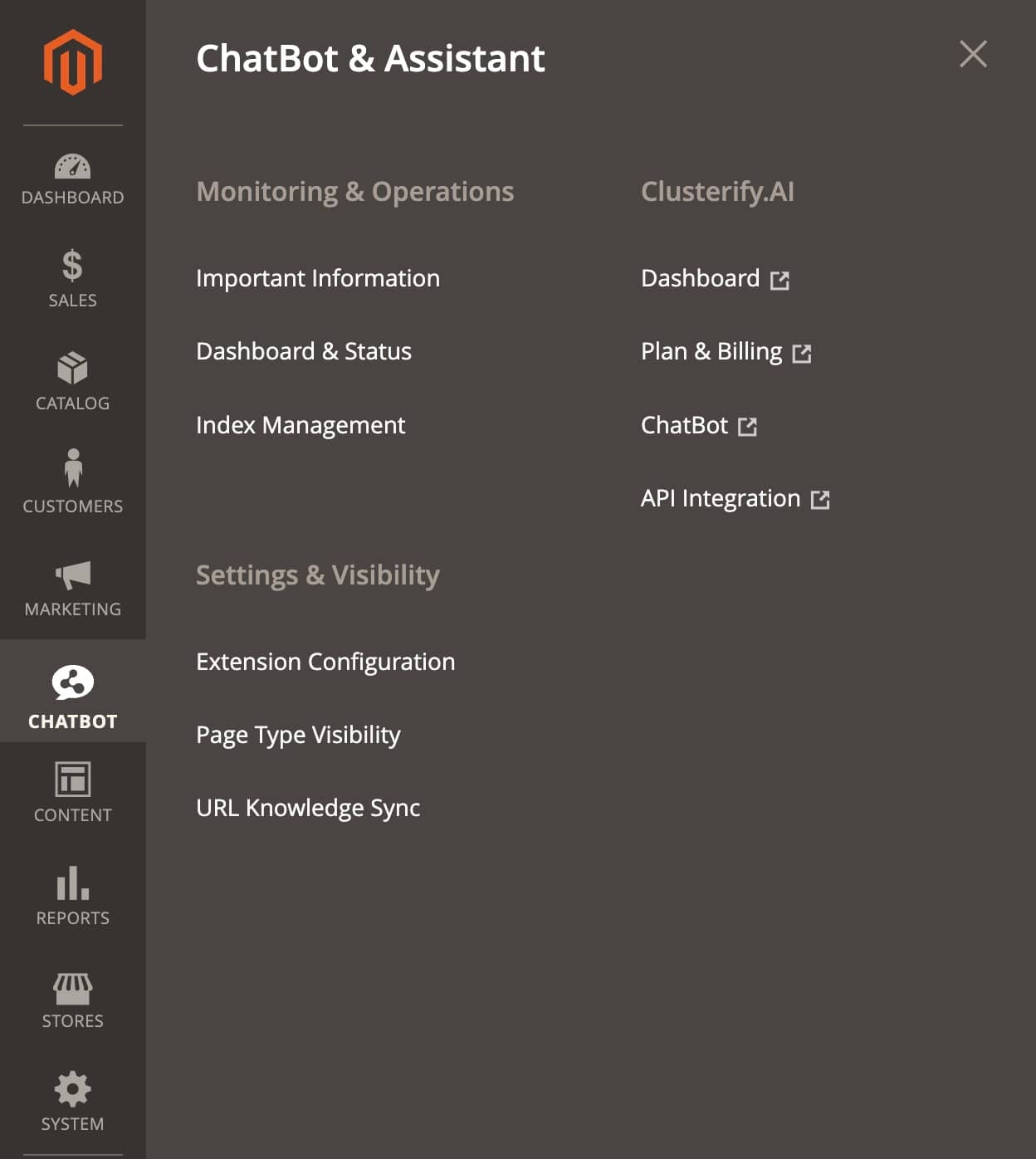
Three Organized Admin Navigation Pillars in the Magento Module
Every feature of the Magento 2 ChatBot module is accessible in two clicks from the Magento Admin sidebar or via Stores > Configuration > Clusterify.AI > ChatBot & Assistant:
Includes Important Information (built-in merchant AI training guide), Dashboard & Status (live subscription verification, URL quota counter, and RabbitMQ queue monitor), and direct access to Magento's Index Management.
Deep-links directly into Extension Configuration, Page Type Visibility (granular Yes/No switches across 95 storefront layout handles), and URL Knowledge Sync rules.
One-click external links (↗) to your Clusterify Dashboard, Plan & Billing, ChatBot Styling & Personality, and API Integration keys.
Clusterify.AI ChatBot & Assistant Status Dashboard (v1.0.0)
Real-time monitoring of AI chatbot status, subscription quota, Mview indexers, and RabbitMQ knowledge synchronization pipelines inside the Magento Chatbot Extension.
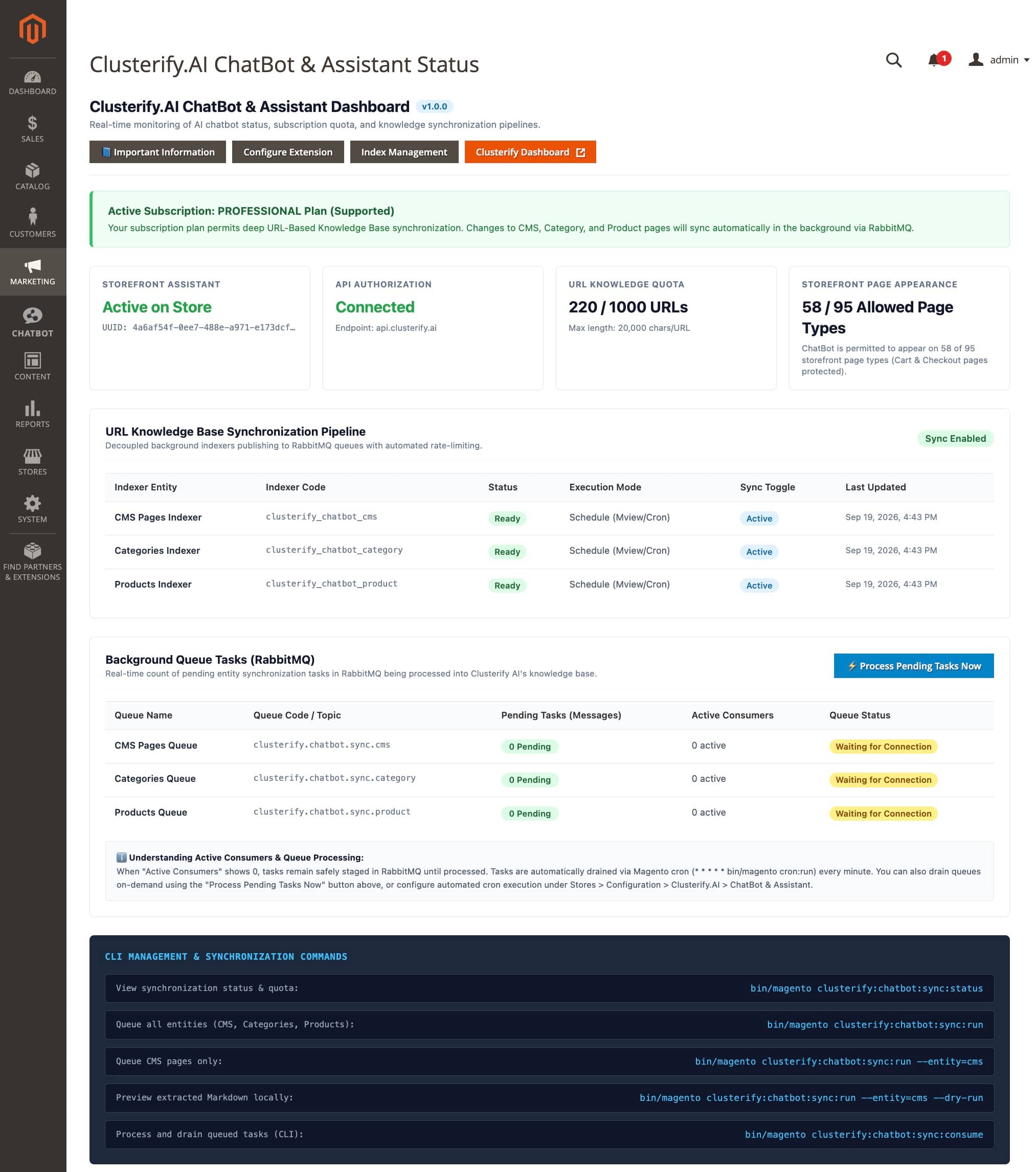
Displays the active Public UUID bound to your storefront widget.
Verifies live connectivity to api.clusterify.ai and plan tier.
Up to 20,000 characters of dedicated AI context per synchronized URL.
58 discovery/catalog/account pages enabled; 37 Cart & Checkout pages protected.
General Configuration, Public UUID & API Authorization
The Magento Chatbot Configuration screen is structured into 5 clean collapsible sections: General Configuration, ChatBot/Assistant Public UUID, ChatBot Visibility Per Page Type, Clusterify.AI API Authorization, and URL Knowledge Base Synchronization. Every setting supports Magento's multi-store scope hierarchy ([store view]).
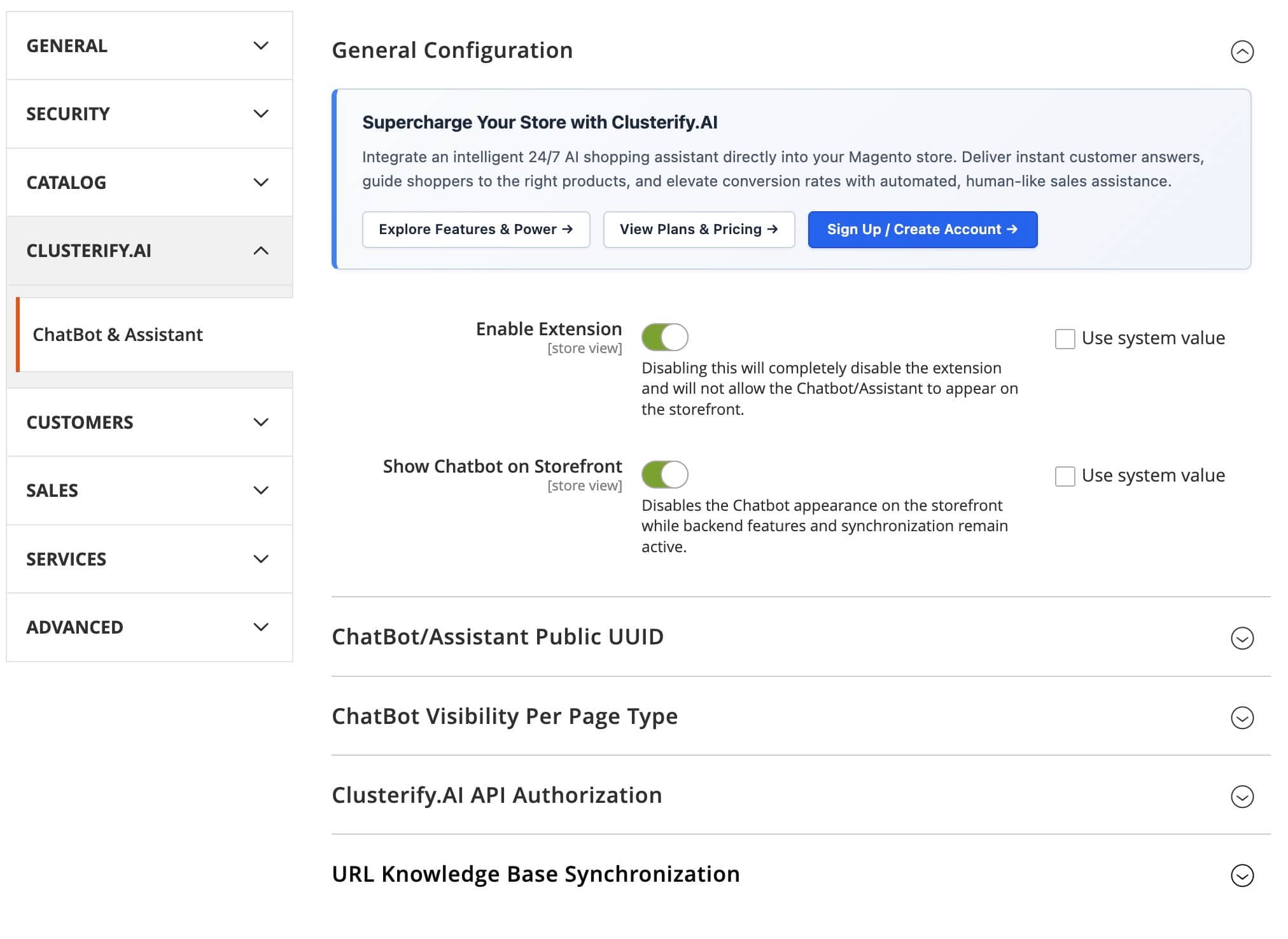
Decoupled Storefront & Backend Module Switches
- Enable Extension (
[store view]): Master switch for the Magento Chatbot module. Disabling this turns off all frontend and backend activity. - Show Chatbot on Storefront (
[store view]): Hides or displays the shopper-facing widget while keeping backend indexers and RabbitMQ synchronization active—ideal for pre-launch catalog training. - ChatBot/Assistant Public UUID (
[store view]): Binds your Magento Store View to a specific Clusterify.AI assistant instance (enabling distinct language or brand assistants per Store View).
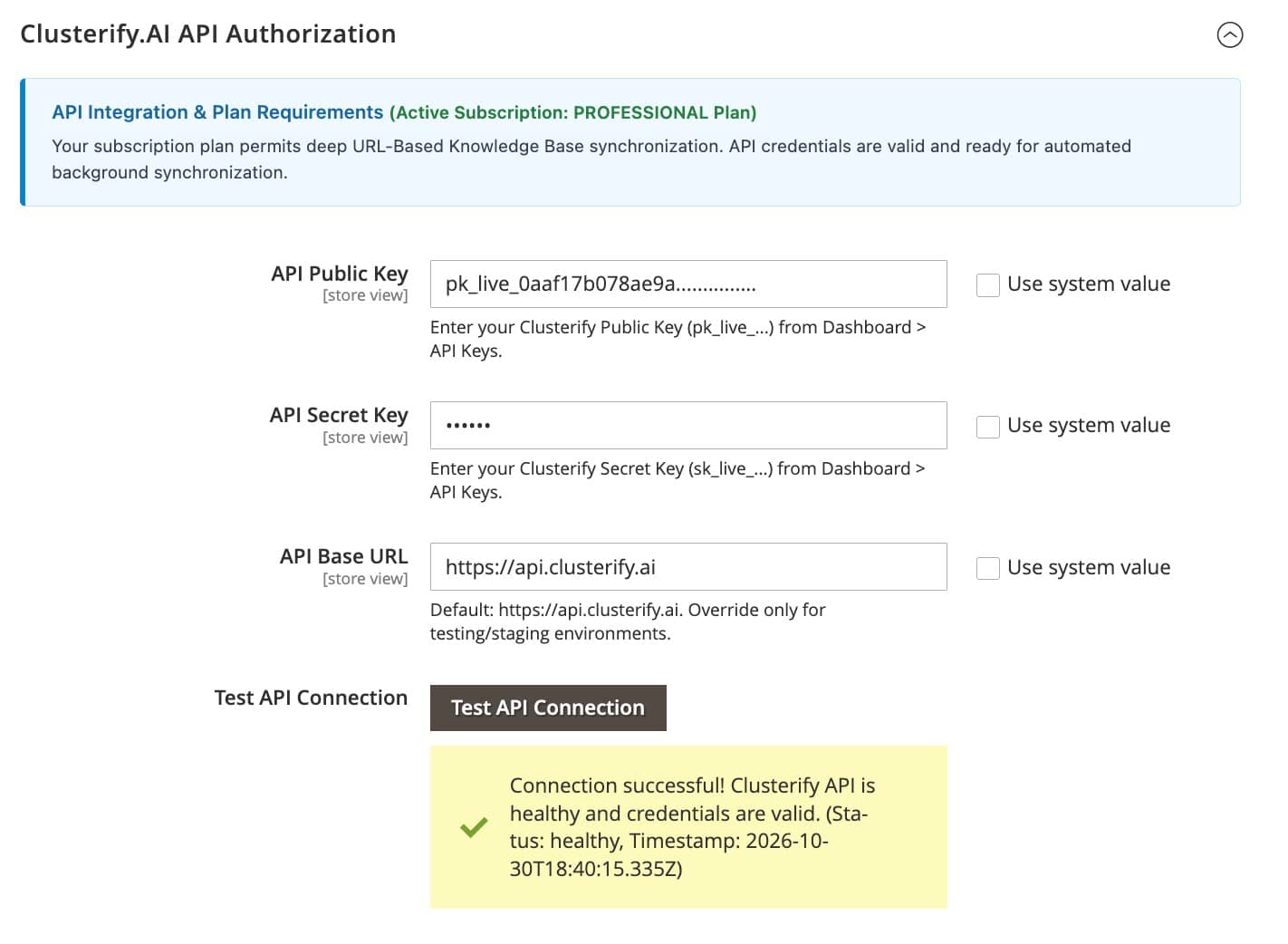
Encrypted Keys & Live AJAX Connection Verification
- API Public Key (
pk_live_...) & Secret Key (sk_live_...): Generated in your Clusterify Dashboard under API Keys. The Secret Key is encrypted at rest in Magento's database usingMagento\Config\Model\Config\Backend\Encrypted. - API Base URL: Defaults to
https://api.clusterify.ai(customizable for isolated staging or enterprise proxy environments). - Test API Connection Button: Dispatches an immediate health check via
clusterify/chatbot-sdk, confirming credential validity, timestamp, and subscription plan eligibility.
Three Dedicated Magento 2 ChatBot Indexers
To guarantee zero performance impact when saving products, categories, or CMS pages in Magento Admin, the Clusterify.AI Magento Chatbot Extension registers 3 native indexers in System > Tools > Index Management. Operating in Update by Schedule mode, database triggers record modified entity IDs into Mview changelog tables and publish synchronization batches to RabbitMQ asynchronously:
| Indexer | Description | Mode | Status | Schedule Status | Updated | |
|---|---|---|---|---|---|---|
Clusterify AI: CMS Pages clusterify_chatbot_cms | Synchronize CMS pages to Clusterify.AI ChatBot URL knowledge base via RabbitMQ | UPDATE BY SCHEDULE | READY | IDLE (0 IN BACKLOG) | Sep 19, 2026, 4:43:31 PM | |
Clusterify AI: Categories clusterify_chatbot_category | Synchronize category pages to Clusterify.AI ChatBot URL knowledge base via RabbitMQ | UPDATE BY SCHEDULE | READY | IDLE (0 IN BACKLOG) | Sep 19, 2026, 4:43:31 PM | |
Clusterify AI: Products clusterify_chatbot_product | Synchronize product pages to Clusterify.AI ChatBot URL knowledge base via RabbitMQ | UPDATE BY SCHEDULE | READY | IDLE (0 IN BACKLOG) | Sep 19, 2026, 4:43:31 PM |
Clusterify AI: CMS Pages
Synchronize CMS pages to Clusterify.AI ChatBot URL knowledge base via RabbitMQ
clusterify_chatbot_cms_clSep 19, 2026, 4:43:31 PMClusterify AI: Categories
Synchronize category pages to Clusterify.AI ChatBot URL knowledge base via RabbitMQ
clusterify_chatbot_category_clSep 19, 2026, 4:43:31 PMClusterify AI: Products
Synchronize product pages to Clusterify.AI ChatBot URL knowledge base via RabbitMQ
clusterify_chatbot_product_clSep 19, 2026, 4:43:31 PMIn production Magento 2 & Adobe Commerce environments, keep all 3 indexers in Update by Schedule mode so database triggers track deltas via Mview changelog tables without slowing down admin saves.
Built-In Merchant Guide: How to Make Your ChatBot Smarter
Your e-commerce managers and copywriters never have to guess how to train the AI. The Magento Chatbot Module includes a comprehensive Important Information & Merchant Guide directly inside Magento Admin covering prompt engineering for products, storewide General Knowledge best practices, and operational rules.
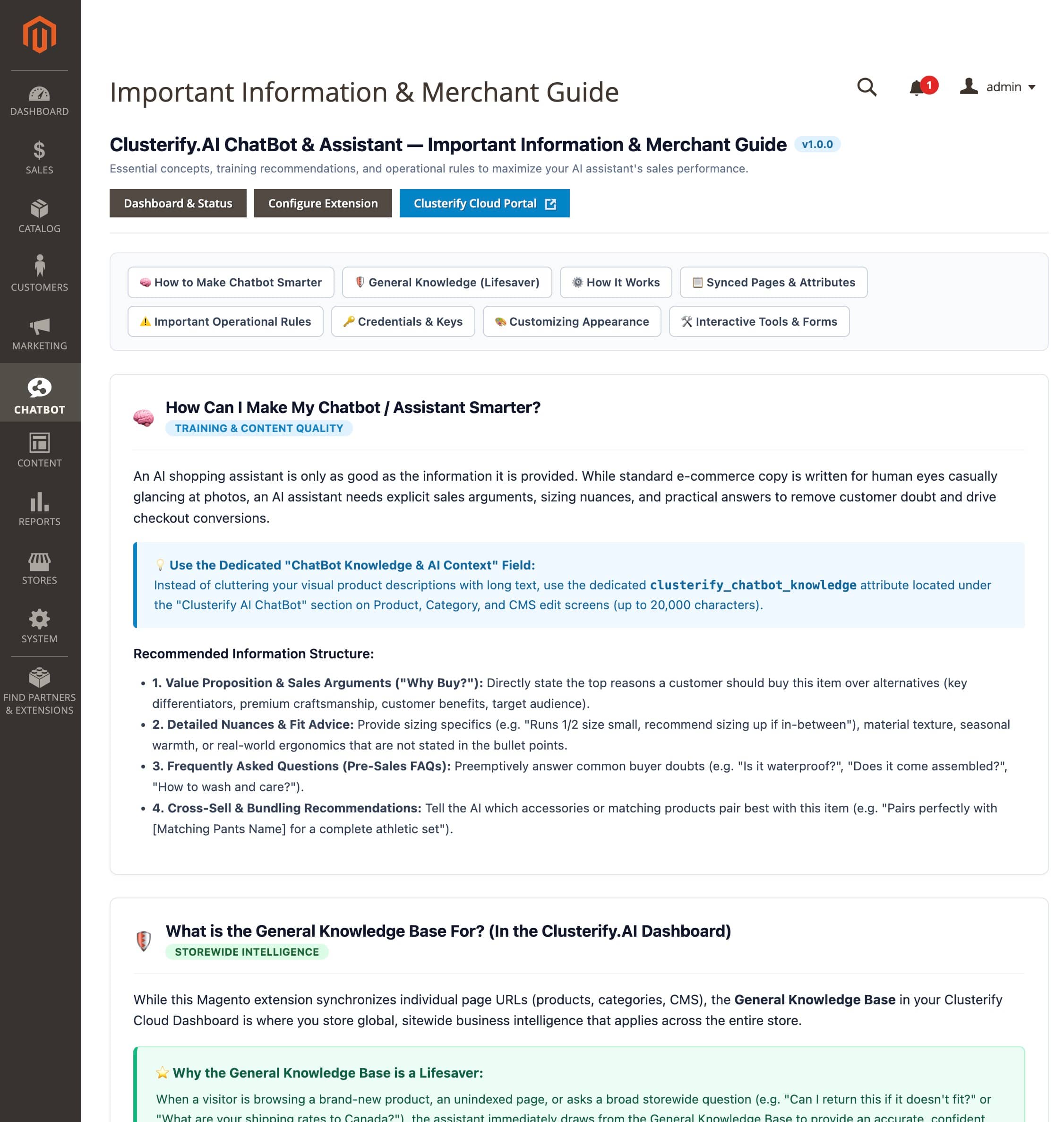
The clusterify_chatbot_knowledge Field
Instead of cluttering your visual storefront descriptions with long text, the Magento Chatbot Extension installs a dedicated ChatBot Knowledge & AI Context attribute under the Clusterify AI ChatBot section on Product, Category, and CMS edit screens (up to 20,000 characters per entity).
Combining URL Knowledge + General Knowledge Base
While the Magento extension synchronizes individual page URLs (products, categories, CMS), the General Knowledge Base in your Clusterify Cloud Dashboard stores global storewide rules (shipping policies, international return windows, warranty terms) so the assistant always has complete context on every page.
ChatBot Visibility Per Page Type: 6 Groups & 95+ Layout Handles
Because Magento 2 stores have dozens of specialized layout handles across CMS, Catalog, Checkout, Customer Account, and 3rd-party modules, we rendered the entire ChatBot Visibility Per Page Type configuration panel below as an interactive accordion. Use the live search filter, expand any page group, or test the Yes/No switches directly:
ChatBot Visibility Per Page Type
Control which storefront page types the ChatBot & Assistant widget is permitted to appear on. By default, Cart and Checkout pages are disabled while other pages are enabled. These page types are dynamically discovered from your Magento environment and installed extensions via page_types.xml.
Discovery, Catalog, CMS & Account
Landing & CMS (6), Product & Catalog (7), Customer Account (38), and Search & Utility (7) pages have the assistant enabled out of the box to maximize product discovery and self-service support.
Zero-Distraction Cart & Checkout
All 37 Shopping Cart, One-Page Checkout, Multishipping, and PayPal Payflow/Express payment screens are disabled by default to safeguard conversion funnels. Any handle can be toggled on individually if desired.
Automatic 3rd-Party Extension Support
Installed a Magento Blog, Shop-by-Brand, Lookbook, or B2B Quotation module? The extension automatically discovers its layout handles and lists them under Custom Page Types.
URL Knowledge Base Synchronization Settings & Rules
On the PROFESSIONAL Plan, our Magento Chatbot Extension automatically synchronizes CMS pages, Category hierarchies, and Product catalog pages to Clusterify.AI's deep URL-Based Knowledge Base via RabbitMQ. Explore all 10 synchronization settings, operational reindex notices, and cron batch controls in the interactive accordion below:
Your subscription plan permits deep URL-Based Knowledge Base synchronization. Changes to CMS, Category, and Product pages will sync automatically in the background via RabbitMQ.
Choose whether to synchronize dedicated AI training context or standard storefront descriptions to the Clusterify Knowledge Base.
- • Yes (Recommended / Default): Synchronizes URL, Title/Name, SKU, Price/Availability (if enabled below), and the dedicated ChatBot Knowledge & AI Context attribute (
clusterify_chatbot_knowledge) instead of standard storefront HTML descriptions. If custom knowledge is empty for an entity, it safely falls back to standard descriptions. - • No: Synchronizes URL, Title/Name, SKU, Price/Availability (if enabled below), and standard storefront HTML descriptions (Summary and Description).
Frequently Asked Questions: Magento Chatbot Extension & Configuration
Detailed answers on our open-source Magento 2 ChatBot module (clusterify/magento-chatbot), PHP/NPM SDKs, page visibility handles, encrypted API keys, Mview indexers, and RabbitMQ knowledge synchronization.
Is the Clusterify.AI Magento Chatbot Extension / Module open source, and how do I install it?
ClusterifyAI_ChatBot Magento 2 module) is 100% open source under the MIT license and actively maintained as our conversational platform evolves. You can install it via Composer from Packagist (clusterify/magento-chatbot) or inspect the source code and 133 unit tests on GitHub (ClusterifyAI/Magento-ChatBot).Can developers extend the Magento Chatbot Module or build a custom module using an official SDK?
di.xml to build custom ERP, PIM, or catalog synchronization logic. For headless Node.js/TypeScript storefronts, we also maintain @clusterify-ai/chatbot-sdk on NPM.Where in Magento 2 Admin do I access the Magento Chatbot Configuration and Dashboard?
What is the difference between 'Enable Extension' and 'Show Chatbot on Storefront'?
How do the 3 Clusterify AI Indexers work in Magento Index Management?
clusterify_chatbot_cms, clusterify_chatbot_category, and clusterify_chatbot_product. Operating in Update by Schedule mode, database triggers log entity modifications into Mview changelog tables (*_cl) and publish batches to RabbitMQ asynchronously.Why are all 37 Shopping Cart, Multishipping, and Checkout pages disabled by default?
checkout_cart_index), One-Page Checkout (checkout_index_index), Multishipping, and PayPal Payflow/Express handles are turned OFF so shoppers complete payment with zero distraction.How does the Magento Chatbot module discover all 95 core page types and custom 3rd-party module pages?
page_types.xml declarations aggregated across all core and active third-party modules. Any layout handle from a custom blog, lookbook, brand landing page, or B2B quote module is automatically placed into Custom Page Types with its own Yes/No switch.How do I test my API Public Key and Secret Key inside Magento Chatbot Configuration?
pk_live_... Public Key and sk_live_... Secret Key (stored encrypted via Magento's native Encrypted backend model), and click Test API Connection. An instant AJAX ping verifies credentials, API health, and your active subscription tier.What does 'Sync Custom AI Knowledge (Instead of Core Descriptions)' do?
clusterify_chatbot_knowledge attribute on Product, Category, and CMS edit screens instead of standard storefront HTML descriptions. If the custom AI field is empty for an item, Smart Fallback automatically uses the standard storefront description so no product ever has blank context.Why do 'Sync Product Price' and 'Sync Product Availability' default to No?
How does 'Sync In-Stock Products Only' help conserve URL Knowledge quotas?
bulkDelete RabbitMQ message. Note that changing this setting requires running bin/magento indexer:reindex clusterify_chatbot_product so existing out-of-stock items are discovered and removed.Do we need persistent Supervisor daemons to process RabbitMQ synchronization queues?
bin/magento clusterify:chatbot:sync:consume).Can we configure different ChatBot UUIDs, languages, or visibility rules per Website or Store View?
[store view] scope indicator and Use system value checkbox. You can assign distinct Public UUIDs and localized knowledge bases for English, German, French, or B2B storefronts.Can our DevOps team automate Magento Chatbot Configuration and page visibility via CLI commands?
pagetype-visibility:list, set, reset), and queue synchronization. Consult our CLI Developer Documentation for full CI/CD examples.Explore More Magento 2 ChatBot Extension Documentation
Deep-dive engineering manuals for Adobe Commerce architects, DevOps engineers, and store administrators.
Live RabbitMQ queue monitoring, on-demand AJAX task draining, and health telemetry.
Dual-layer change tracking, 100-item batch chunking, and 300ms rate-limit throttling.
Automate config, page visibility, and queue draining in CI/CD pipelines with JSON output.